The Health tab assembles information about each child’s physical and cognitive development. Because there are many categories of health data, this tab has been divided into the following six subtabs:
INSURANCE & PROVIDERS
Insurance & Providers is the first health subtab and is where a child’s primary care physician, dentist and insurance details can be added and updated.
Records that appear in the Providers and Insurance grids are verified records, and those details become read-only. If there is an data entry error, the original verification record should be deleted and a new verification should be added.
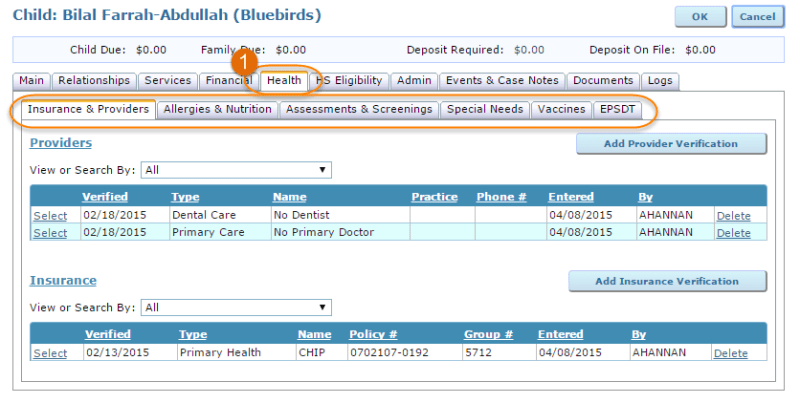
Verified provider and insurance information is especially important for Head Start programs and their end of year Program Information Report (PIR). As part of the PIR, programs are required to report the number of children who:
- enrolled with or without insurance
- enrolled with or without a medical home
- enrolled with or without a dental home
- received insurance coverage or a provider during the program year
- lost provider care or insurance coverage by the end of enrollment
Add a provider record via the ‘Add Provider Verification’ button. In the Provider screen, use the ‘Provider Type’ menu to indicate if you are adding a Primary Care or Dental Care provider verification. If the child does not have a Primary Care or Dental Care home, check the ‘No Primary Care Home’ or ‘No Dental Care Home’ checkbox. It is important to verify that the child does not have primary care or dental care for the PIR.

A list of existing doctors will be available to choose from or you may add a new doctor. Be sure to look through the available list of provider records (accessible via Admin on the main menu) before creating a new one to avoid duplicate data in the provider list.
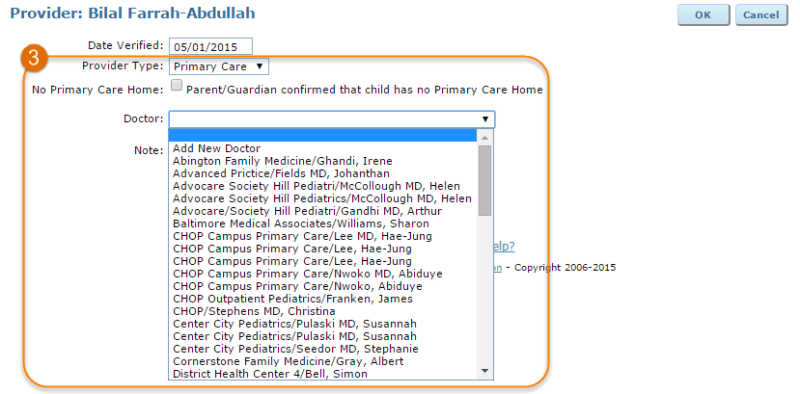
Once an existing provider is chosen, address, telephone and practice details appear. Click ‘OK’ to save.
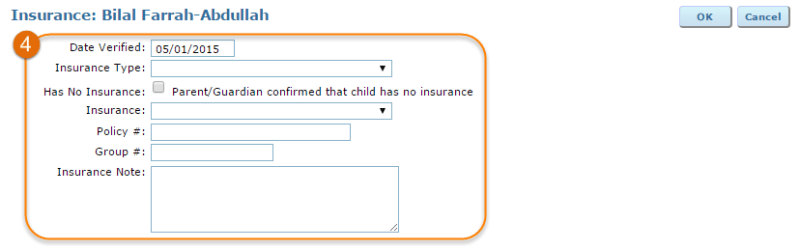
Insurance coverage information is added using the ‘Add Insurance Verification’ button. The ‘Insurance Type’ and ‘Insurance’ drop-downs contain options to indicate what type of insurance the child has (for example, dental or primary health coverage) and the specific insurance provider (such as Medicaid or private insurance). Policy number and group number fields are also included.
If a child does not have insurance coverage, the ‘Has No Insurance’ checkbox should be checked. As with provider verifications, it is important to document if a child does not have insurance for Head Start reporting.
ALLERGIES & NUTRITION
Many young children may have diagnosed allergies or food restrictions. The Allergies & Nutrition tab enables providers to document these conditions, their severity and any ongoing treatment or food substitution plans. The Allergies & Nutrition tab is organized into three areas: Infants/Toddlers, Allergies/Food Restrictions and Nutritional Events.
The first section, Infants/Toddlers, includes fields that are relevant to very young children; here you can record formula consent (along with a place to upload consent forms), formula choice, diaper size and other information.
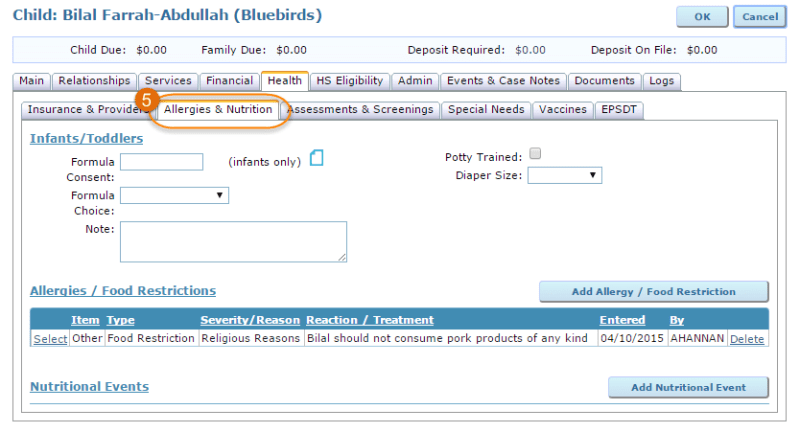 The Allergies/Food Restrictions grid displays allergies or special diet information. When a new allergy is diagnosed or food substitution is requested, use the ‘Add Allergy/Food Restriction’ button to record this information.
To add an allergy, select ‘Allergy’ from the ‘Type’ menu, which prompts the ‘Severity’ field to appear. A notes field provides a place to record action plans.

Record a food restriction/special diet by selecting ‘Food Restriction’ from the ‘Type’ menu. A ‘Reason’ menu appears to specify if this special diet is for religious or health reasons. Meal substitution plans or other details may be recorded in the notes field.
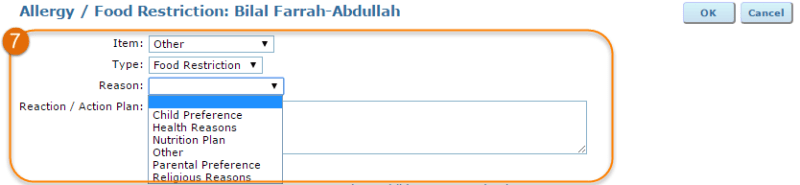
Click ‘OK’ to save.
The last area in the Allergies & Nutrition tab is the Nutritional Events grid, where completed nutrition questionnaires and nutrition consultations are displayed. Click the ‘Add Nutritional Event’ button to record a nutrition event.
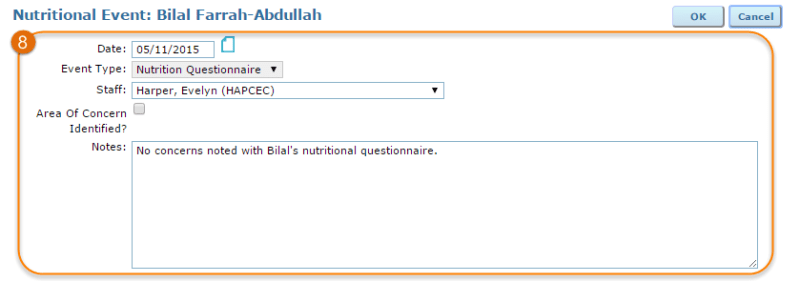 The date of assessment, event type (Nutrition Questionnaire or Nutrition Consultation), name of the staff member and relevant plans/recommendations can be noted. When creating a Nutrition Questionnaire, a checkbox appears to indicate if the event has resulted in an identified concern and details of the concern. After saving the assessment, corresponding documentation can be uploaded.
ASSESSMENTS & SCREENINGS
Assessments & Screenings is the next health subtab and it includes both health and mental health screenings. The Assessments and Screenings grid displays all screening/assessments for a child, screening date, screening results and notes.

Document a new assessment or screening by clicking the ‘Add Assessment/Screening’ button.
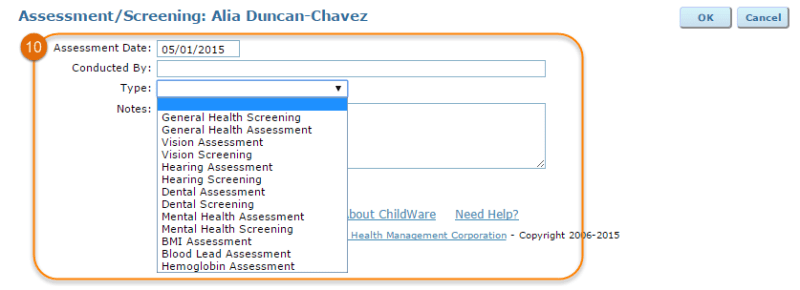
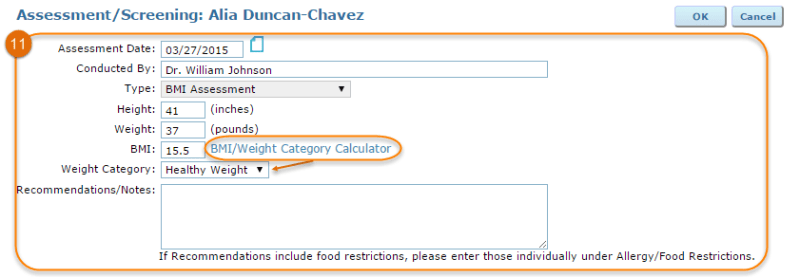
The ‘Type’ drop-down determines which assessment-specific fields appear. For example, selecting ‘BMI Assessment’ causes height, weight, BMI and weight category fields to display. Be sure to select the correct type based on the paper documentation. For example, the drop-down list includes dental assessments and dental screenings, which differ based on who conducted the exam/screening. An assessment is a formal examination completed by a doctor or dentist while a screening may be conducted by non-medical staff.
Note: a link to the CDC’s child BMI/weight category calculator is included in the BMI assessment. The CDC’s calculator requires screening date, child’s date of birth, sex, height and weight to produce the correct BMI and weight category.
Other screening types–such as hearing, vision and dental screenings–are enabled to record a concern that was identified through the screening.
Click ‘OK’ to save the assessment/screening.
SPECIAL NEEDS
In the Special Needs subtab, providers can document physical, developmental and mental health needs as well as prescribed medications and completed IEP/IFSPs.

The Special Needs grid displays all special needs for a child, any accommodations for that need and when the need was entered. Click ‘Select’ to the left of the special need to review it or record a new special need using the ‘Add Special Need’ button.
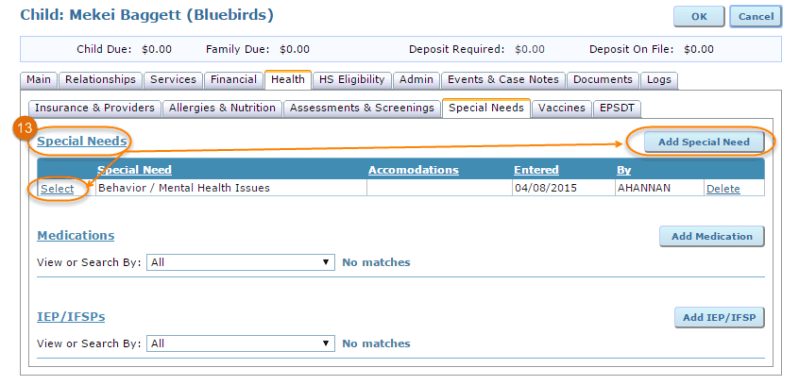
Diagnosis date, special need type, accommodations and treatment fields are included. If a child is not receiving treatment, a ‘reason’ field will appear to explain why treatment/service has not been provided. It is important to complete the full form for Head Start reporting.

Click ‘OK’ to save.
In the Special Needs subtab, the Medication grid contains medication a child is taking. Document a new medication using the ‘Add Medication’ button.
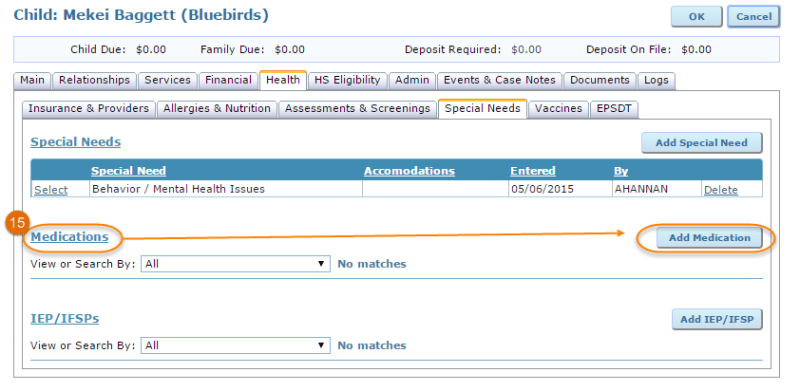 To record a medication, add the name of the medication, if it is a prescription, dosage amount, administration time and whether or not the medication is required on an ongoing basis or during a period of time (start date/end date). Click ‘OK’ to save.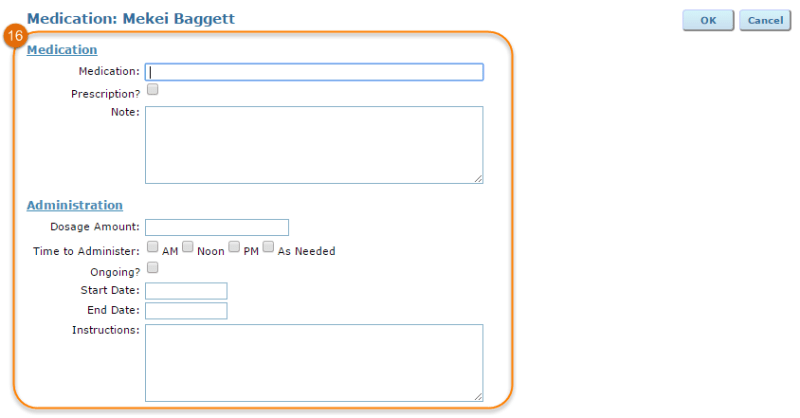
Finally, the Special Needs tab also includes an area to record IEP/IFSPs, which can be added via the ‘Add IEP/IFSP’ button.
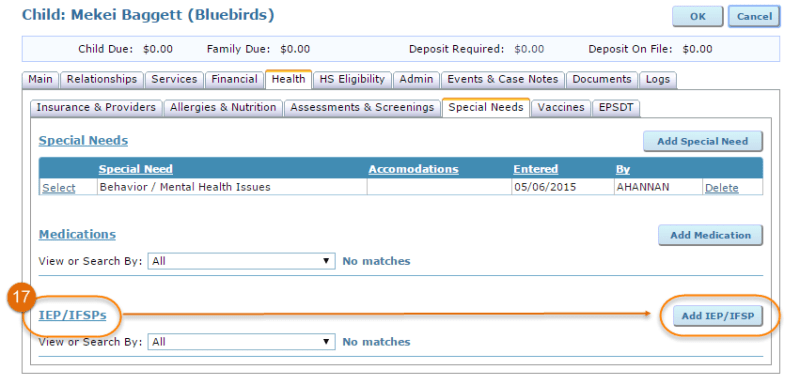
The IEP/IFSP add screen includes start date, end date, diagnosed primary disability, caseworker and service provider fields. If the child recently transferred to your program, they may have an IEP or IFSP but may not be currently receiving services. It is important to note this for Head Start reporting.
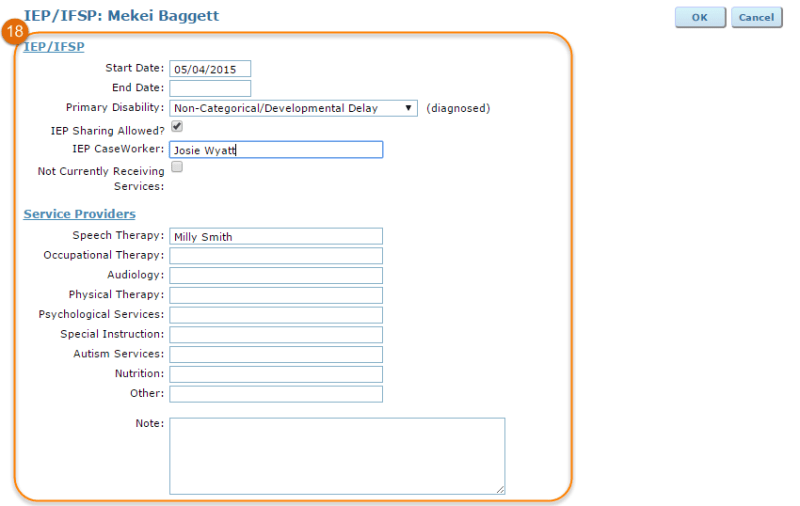
Click ‘OK’ to save. Once saved, the IEP/IFSP will appear in the IEP/IFSP grid to review at any time.
VACCINES
Immunizations are housed within the Vaccines subtab, which includes a chart of required vaccines/expected schedule for administration, a vaccine history grid, and an area to record temporary or permanent vaccine exemption.
Document a new vaccine with the ‘Add Vaccine’ button.

Record a dose by selecting from the ‘Vaccine’ drop-down. Based on the vaccine chosen, the disease name will appear in the ‘Vaccine/Dosage Information’ section. The system will calculate the next required dose, while you will record the date the dose was given. Add any useful notes in the ‘Comment’ field and click ‘OK’ to save. To save time during the data entry process, the page will refresh and set to the next dose of that immunization type. After you have saved your last dose, click ‘Return’ to return to the child’s record.
Note: If all required doses have been administered, the vaccine will not appear in the ‘Vaccine’ drop-down.
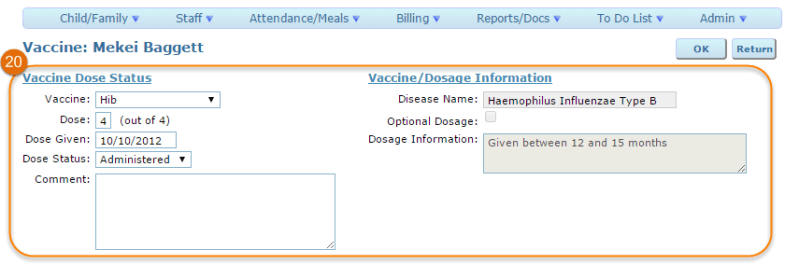 Once saved, the dose will appear in the Vaccine history grid.
Record a temporary or permanent immunization exemption in the ‘Vaccine Exemptions’ section of the Vaccines subtab.
EPSDT
The final health subtab tracks EPSDT (Early and Periodic Screening, Diagnostic or Treatment) status according to state guidelines. This tab contains three sections: an Assessment/Screening Summary, a Vaccines grid and an area to record EPSDT Verifications.
EPSDT verification is especially important for Head Start programs’ Program Information Report (PIR). Head Start programs are required to report the number of children who were up-to-date on EPSDT as of enrollment and the number who were up-to-date on EPSDT at the end of enrollment. The Assessment/Screening Summary and Vaccines grid will help you decide whether the child is up-to-date, as it summarizes data entered in the Assessments & Screenings tab and the Vaccines tab.
Record a verification record via the ‘Add Verification’ button.
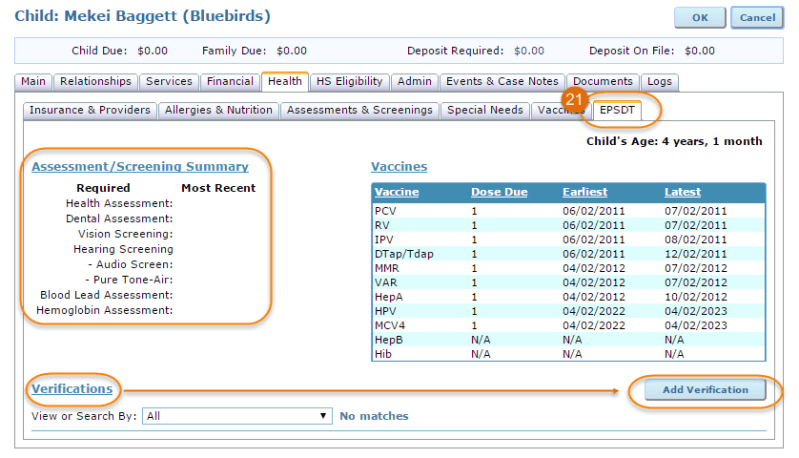
Fields appear to document verification date, EPSDT area (general health, dental health or immunizations), EPSDT status (up-to-date, not up-to-date or on an immunization catch-up schedule), verifier’s name and notes.

Click ‘OK’ to save.
The EPSDT verification record will then display in the Verifications grid. If there is an data entry error, the original verification record should be deleted and a new verification should be added.

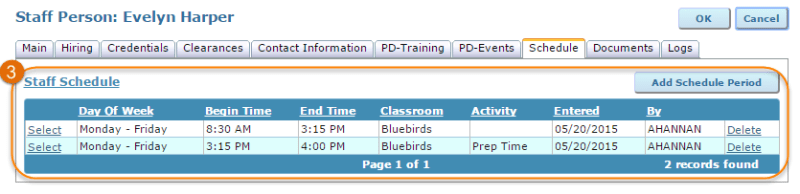
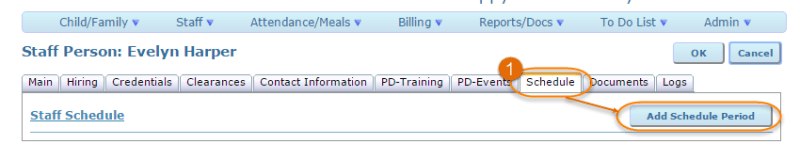 Click the ‘Add Schedule Period’ button to record an employee’s schedule. Specify the days of the week, begin time, end time, room and activity. If an employee’s hours or room vary from day to day, enter each day’s schedule details separately.
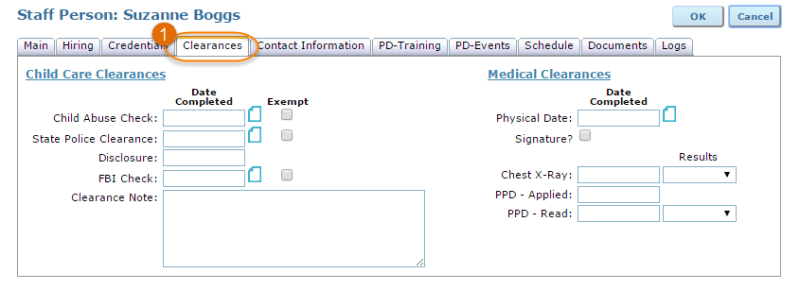 Upload documentations for child abuse and FBI clearance checks, as well as physical completion documents, using the attachment icon. Click ‘OK’ to save information on this tab.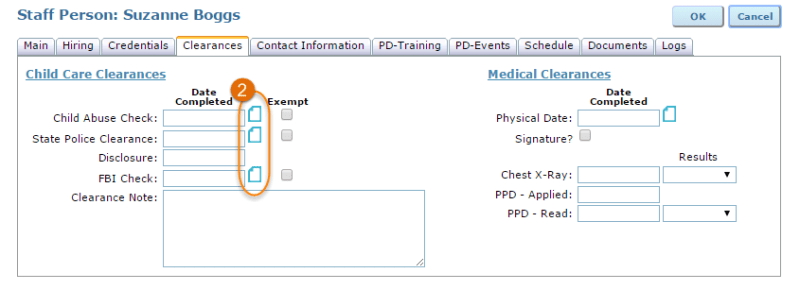


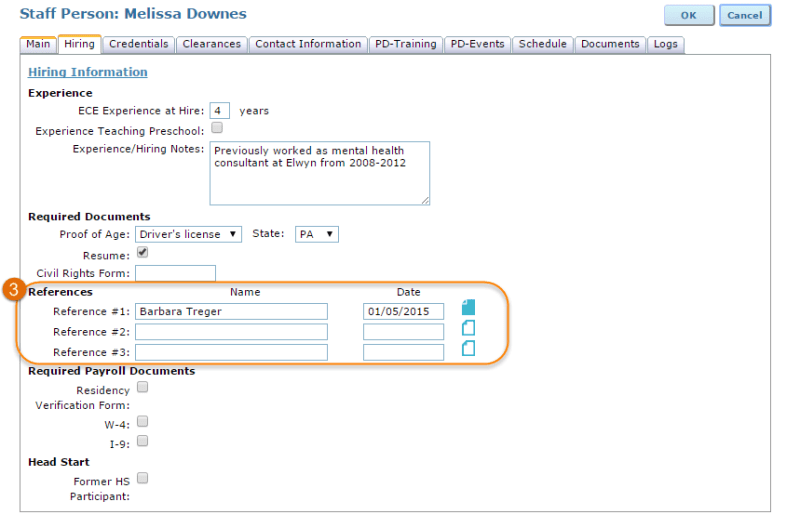
 In the References area, you can capture name and date of reference verification, as well as attach letters of reference or other similar documentation.
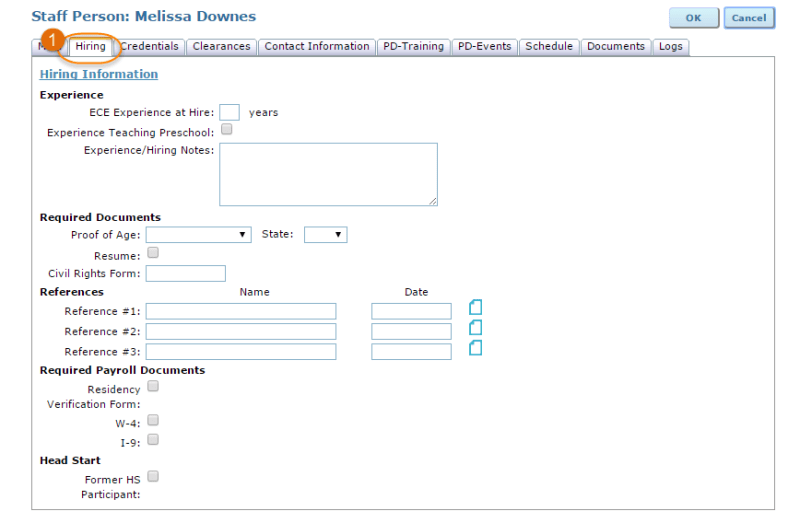
 Click ‘OK’ on the Hiring tab to save.
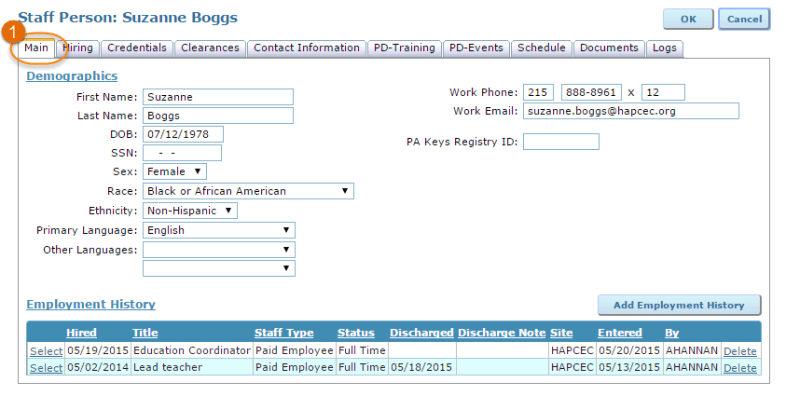 The Employment History grid may be updated in two ways; first, to terminate a current staff member, click ‘Select’ to the right of the employment record. Record transition/termination date, reason and notes and click ‘OK’ to save.
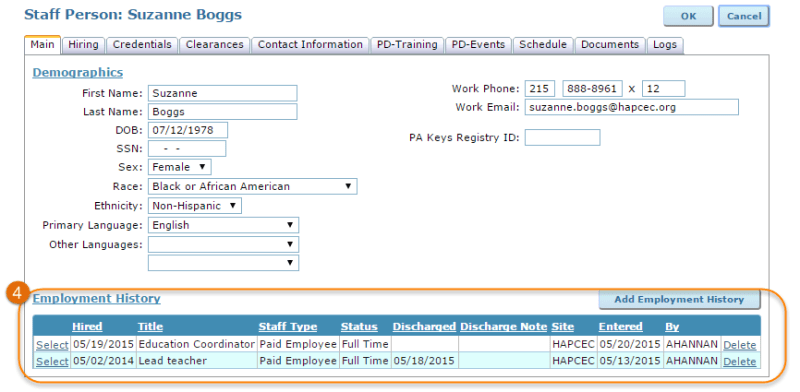
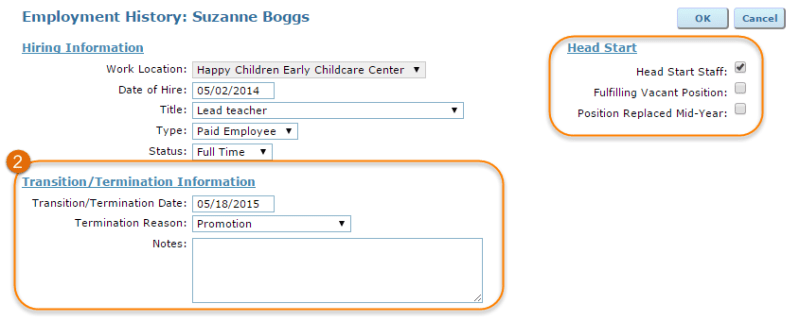 The Employment History grid will update with the termination date and note. When a previously-vacant Head Start position has been filled, users will need to return to the terminated employee’s record to check the ‘Position Replaced Mid-Year’ checkbox. This information is especially important for the yearly PIR (Program Information Report) that is submited to the Office of Head Start.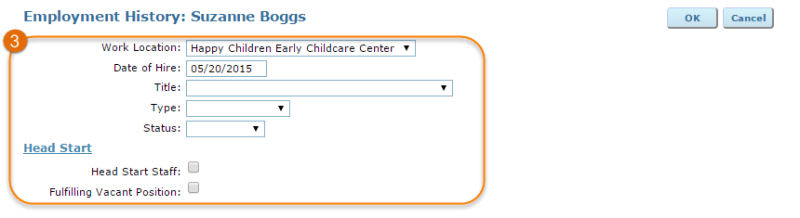
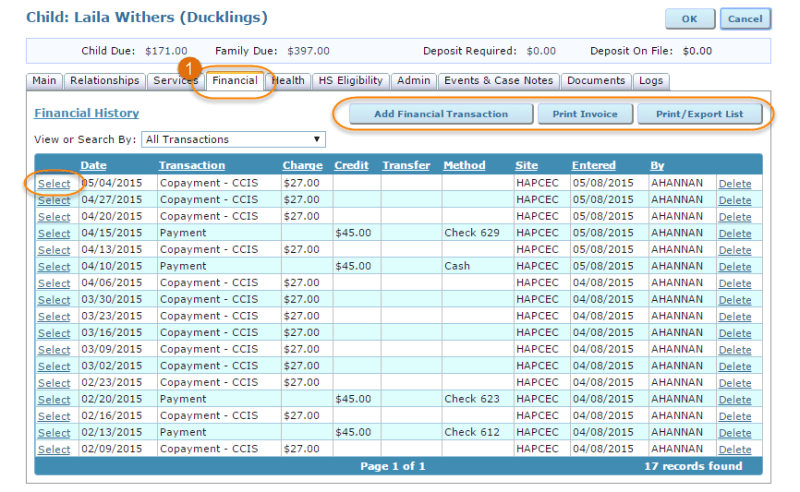
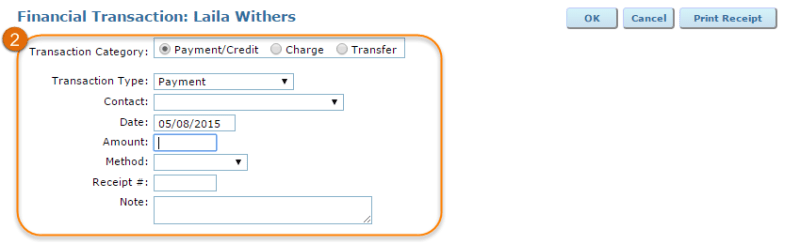
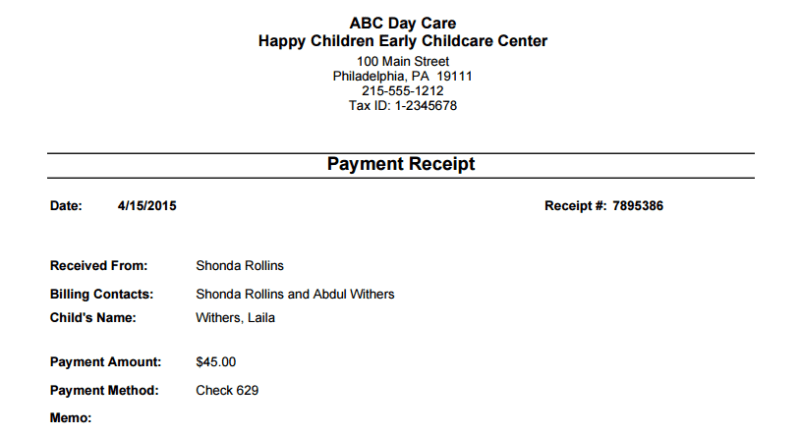
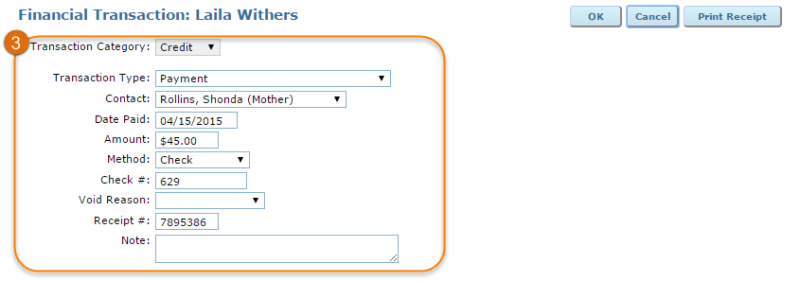

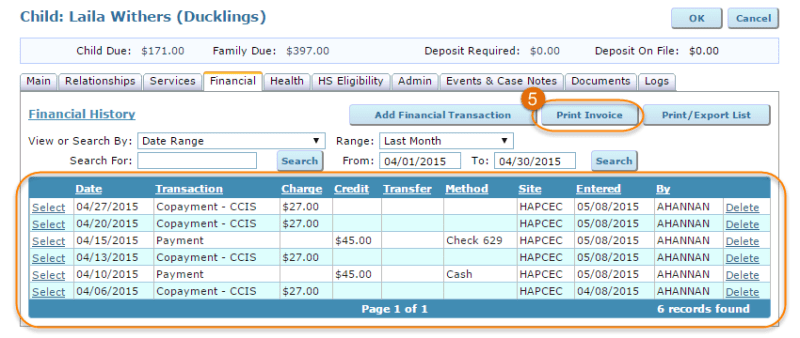
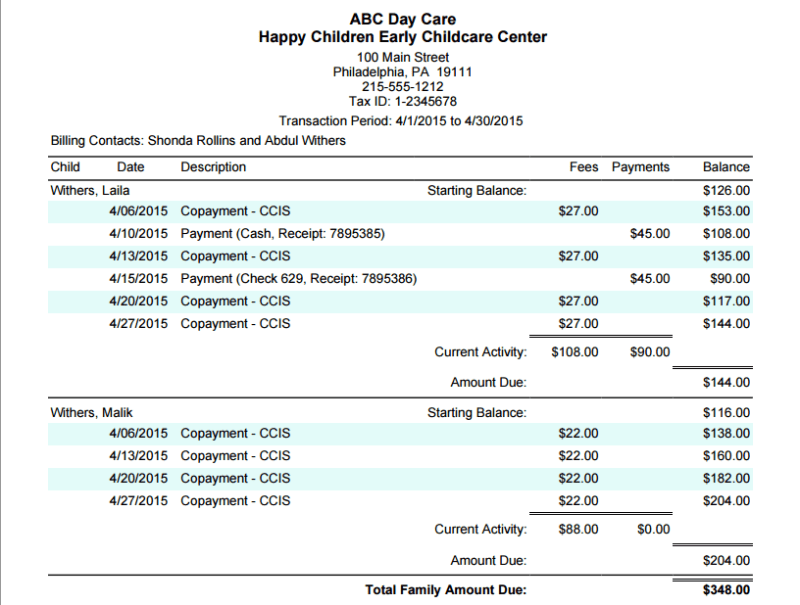 Use the ‘Print/Export List’ button to export all transactions in the Financial History grid.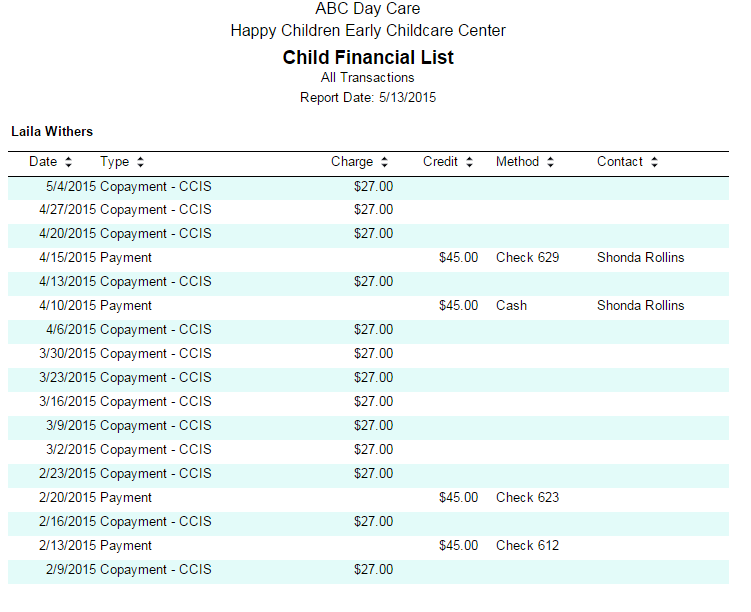


 ChildWare