All posts by childware

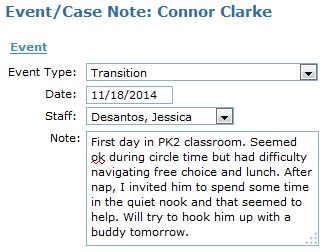
Transition

transition

  • Date: Date of the transition. This defaults to today’s date so be sure to update it if you are entering an event a few days later.
  • Staff: Name of the staff person recording the transition note.
  • Note: Enter specific details here. This field is required for this event type.

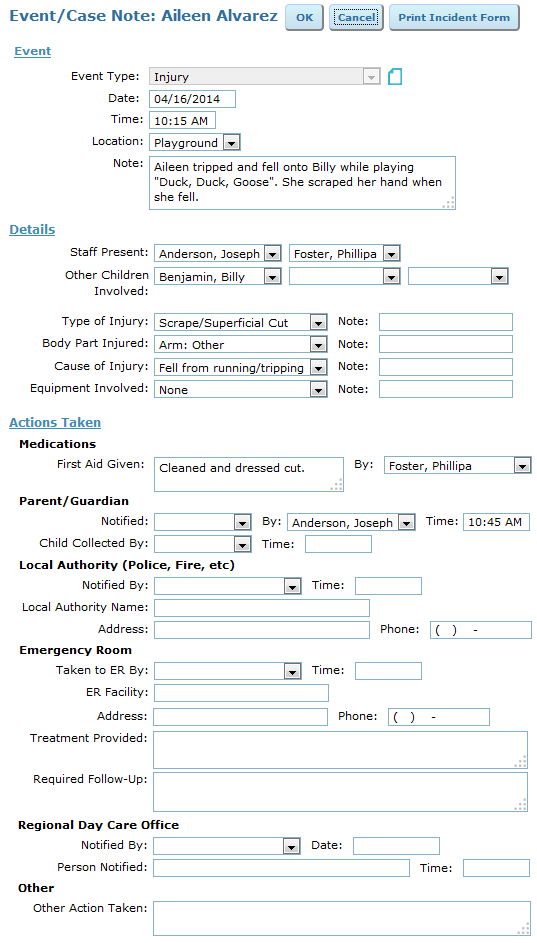
Injury

injury

  • Print Incident Report: When you have finished filling out the event form, you can print an incident report in DPW format to be signed by the parent.
  • Date: Date of the event. This defaults to today’s date so be sure to update it if you are entering an event a few days later.
  • Time: Time of the accident. This can help you identify patterns in the time of day that accidents are more likely to occur.
  • Location: Location of the accident. This can help you identify  patterns in the locations where accidents are more likely to occur.
  • Staff Present: Staff that were present when the accident took place. This can help you identify  patterns in staffing that might affect when accidents are more likely to occur.
  • Other Children Involved: Record any other children involved in the incident, if any.
  • Type of Injury: Select from a list of common injuries or select “Other” and enter specifics.
  • Body Part Injured: Select from a list of common injuries or select “Other” and enter specifics.
  • Cause: Enter the cause of the injury if known.
  • Equipment Involved: Select from a list of typical equipment or select “Other” and enter specifics. This can help you identify patterns in the types of equipment usually involved in accidents.
  • First Aid: If the child was given any first aid, enter it here and indicate by whom it was administered.
  • Parent/Guardian: You can indicate which, if any of the child’s parents or guardians were contacted by whom and at what time. You can also indicate whether or not a parent/ guardian came to pick up the child and at what time that occurred.
  • Local Authority: If the event was serious enough to warrant a call to 911, you can record who called the emergency services and at what time. You can also record what specific service came to your assistance.
  • Emergency Room: If the child was taken to the emergency room, you can indicate by whom and at what time. You can also record the name and contact information of the ER and specify what treatment the child received. If there is a need for specific medical follow up, you can enter it here and add a reminder so you remember to follow up.
  • Regional Day Care Office: For serious incidents resulting in ER treatment, hospitalization, death, or the dispatch of emergency services, the regional day care office (in Pennsylvania, this is your local DPW office) must be notified. You can indicate who notified the office and when; you can also record the name of the specific person at the office to whom the report was filed.
  • Other Action Taken: If any other steps were taken in response to the incident, you can enter them here.

Illness

illness

  • Print Incident Report: When you have finished filling out the event form, you can print an incident report in DPW format to be signed by the parent.
  • Date: Date of the event. This defaults to today’s date so be sure to update it if you are entering an event a few days later.
  • Illness Type: Select from a list of common illnesses or select “Other” and enter specifics.
  • Cause: Enter the cause of the illness if known.
  • Note: You can enter further details here.
  • Medications: If the child was given any medication, enter it here and indicate by whom it was administered.
  • Parent/Guardian: You can indicate which, if any of the child’s parents or guardians were contacted by whom and at what time. You can also indicate whether or not a parent/ guardian came to pick up the child and at what time that occurred.
  • Local Authority: If the event was serious enough to warrant a call to 911, you can record who called the emergency services and at what time. You can also record what specific service came to your assistance.
  • Emergency Room: If the child was taken to the emergency room, you can indicate by whom and at what time. You can also record the name and contact information of the ER and specify what treatment the child received. If there is a need for specific medical follow up, you can enter it here and add a reminder so you remember to follow up.
  • Regional Day Care Office: For serious incidents resulting in ER treatment, hospitalization, death, or the dispatch of emergency services, the regional day care office (in Pennsylvania, this is your local DPW office) must be notified. You can indicate who notified the office and when; you can also record the name of the specific person at the office to whom the report was filed.
  • Other Action Taken: If any other steps were taken in response to the incident, you can enter them here.

Subsidy Application

subsidy_app

  • Sent Date: Date the application was submitted. This defaults to today’s date so be sure to update it if you are entering an event a few days later.
  • Delivery Method: Format in which the application was submitted. Choose from: Mail, Email, Fax, Hand Delivered, Submitted by Parent, and Submitted by DYFS (NJ only)
  • Received Date: Date you received a response to the application.
  • Status: Outcome of the application. Select Approved or Rejected.
  • Note: Additional details can be entered here.

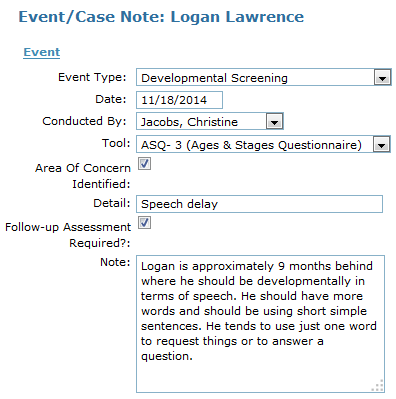
Developmental Screening

dev_screen

  • Date: Date of the screening. This defaults to today’s date so be sure to update it if you are entering an event a few days later.
  • Conducted by: Name of the staff person that conducted the screening. The staff person must be entered into ChildWare  in order to appear on the drop-down list.
  • Tool: Select the type of screening tool used from the list or select Other to enter an item not on the list. Options include all developmental screening tools approved by the Office of Head Start.
  • Area of Concern Identified?: If the assessment raises any issues, you can check this box and include an explanation in the Detail field.
  • Note: Enter specific details here. This field is required for this event type.

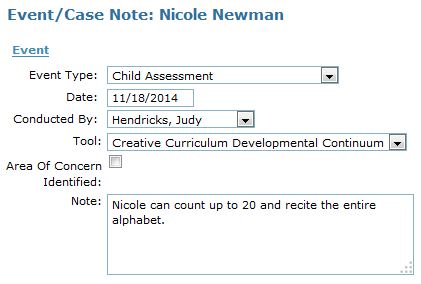
Child Assessment

child_assess

  • Date: Date of the assessment. This defaults to today’s date so be sure to update it if you are entering an event a few days later.
  • Conducted by: Name of the staff person that did the assessment. The staff person must be entered into ChildWare  in order to appear on the drop-down list.
  • Tool: Select the type of assessment tool used from the list or select Other to enter an item not on the list. Options include all child assessments approved by the Office of Head Start.
  • Area of Concern Identified?: If the assessment raises any issues, you can check this box and include an explanation in the Detail field.
  • Note:  Enter specific details here. This field is required for this event type.

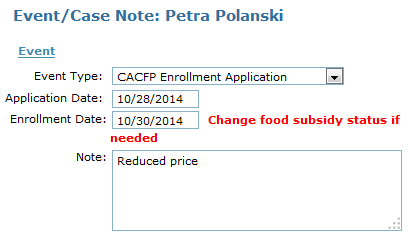
CACFP Enrollment Application

cacfp

  • Application Date: Date on the application paperwork. This field defaults to today’s date so be sure to update it if you are entering an event a few days later.
  • Enrollment Date: Date child was officially enrolled in the CACFP program. Once you enter this date, a prompt will appear reminding you to change the child’s meal subsidy status on their service profile, if necessary.
  • Note: Additional details can be entered here.

Case Notes and Events

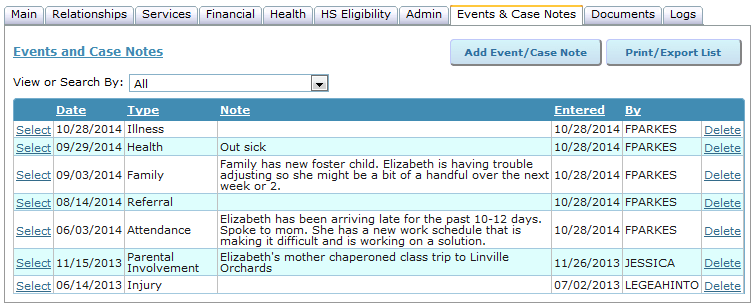
In Summer of 2014, we introduced Case Notes on the Child Record to provide a place for tracking general comments that you want to maintain as part of the child’s file. Part of the reason we created Case Notes was to provide an alternative to creating an Event for what was really a note. Although our initial plan was to separate Events and Case Notes, feedback from our users indicated that the two were and probably should remain linked in some meaningful way. The result is the new Events & Case Notes Tab. We also added the ability to categorize Case Notes to make them easier to manage.

event_case_note_tab

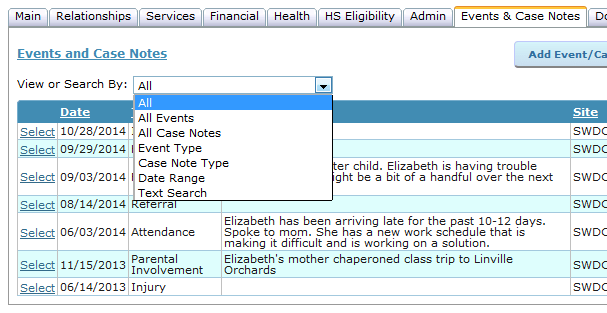
On a single screen you can view, search, add, or edit Events and/or Case Notes. You can also:

  • View Case Notes or Events only
  • View only specific types of Case Notes or Events
  • View Case Notes and Events for a specific date range
  • Search the text of all Case Notes and Events to find what you’re looking for.

event_case_note_retrieve

Case Note Types
  • Administrative
  • Attendance
  • Family
  • Fees/Payment
  • General
  • Health
  • Observation
  • Recruitment

1.3a ChildWare Navigation – Main Menu

menu_main

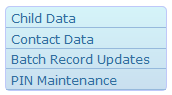
Child/Family Sub-Menu
menu_child
Child Data: View, add, or edit information about children.
Contact Data: View, add, or edit information about a child’s family members.
Batch Record Updates: Update admin data or add assessments/events for multiple children.
PIN Maintenance: Add or edit PINs for family members using the Attendance Kiosk. (CW PLUS)
 
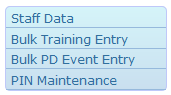
Staff Sub-Menu
menu_staff
Staff Data: View, add, or edit information about staff members.
Bulk Training Entry: Record training hours for multiple staff at the same time.
Bulk PD Event Entry: Record PD events and activities for multiple staff at the same time.
PIN Maintenance: Add or edit PINs for staff members using the Attendance Kiosk. (CW PLUS)
 
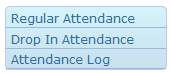
Attendance/Meals Sub-Menu
menu_attendance
Regular Attendance: Record weekly attendance for children based on their schedule.
Drop In Attendance: Record attendance for children who do not have a set schedule.
Attendance Log: View or edit attendance data entered via the Attendance Kiosk. (CW PLUS)
 
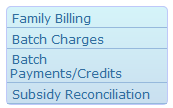
Billing Sub-Menu
menu_billing
Family Billing: Apply weekly or monthly tuition charges to each child’s account at once.
Batch Charges: Apply special charges to the accounts of multiple children at once.
Batch Payments/ Credits: Apply payments/credits to for multiple accounts at once.
Subsidy Reconciliation: Compare projected vs. actual revenue received from subsidy agencies.
 
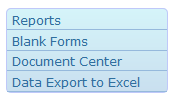
Reports/Documents Sub-Menu
menu_reports
Reports: Run over 100 pre-specified reports and export them to Excel, Word, or PDF.
Blank Forms: Print blank forms such as sign-in/out and meal tracking sheets.
Document Center: View or add documents to staff and child records. (CW PLUS)
Data Export to Excel: Export raw data to Microsoft Excel for more customized analysis.
 
To-Do List Sub-Menu
menu_todo
To Do List: View items currently on your To-Do List.
To Do List Setup: Select what To-Do items you want to track and how you want to track them.
To Do List Definitions: View explanations of all To-Do List items and notification criteria.
 
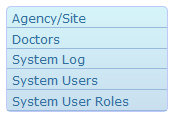
Admin Sub-Menu
menu_admin
Agency/Site: View, add, or edit data related to your agency/site(s).
Doctors: Edit the list of health care providers that can be assigned to children.
System Log: View recent changes to your agency/site’s data*.
System Users: View or edit user permissions or request new user accounts*.
System User Roles: View details of the permissions associated with each user role.
*available only to administrators