Category Archives: Basic_Overview

Getting to Know You Meeting

get_know

  • Date: Date of the meeting. This defaults to today’s date so be sure to update it if you are entering an event a few days later.
  • Staff: Name of the staff person leading the Getting to Know You meeting. The staff person must be entered into ChildWare  in order to appear on the drop-down list.
  • Parent/Contact: Select the name of the parent or contact attending the Getting to Know You meeting. You can select up to two from a drop-down list. The parent or contact must be entered into ChildWare and linked to the child’s record in order to show up in the list.
  • Note: Enter specific details here. This field is required for this event type.
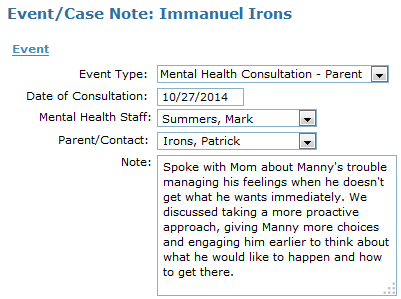
Mental Health Consultation – Parent

mental_parent

  • Date: Date of the consultation between the mental health professional and the child’s parent. This defaults to today’s date so be sure to update it if you are entering an event a few days later.
  • Mental Health Staff: Name of the mental health professional providing the consultation. The staff person must be entered into ChildWare  in order to appear on the drop-down list.
  • Parent/Contact: Select the name of the parent or contact involved in the consultation. The parent or contact must be entered into ChildWare and linked to the child’s record in order to show up in the list.
  • Note: Enter specific details here. This field is required for this event type.
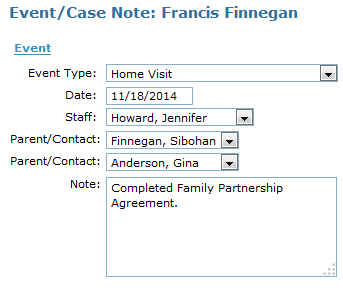
Home Visit

home_visit

  • Date: Date of the home visit. This defaults to today’s date so be sure to update it if you are entering an event a few days later.
  • Staff: Name of the primary staff member conducting the home visit. The staff person must be entered into ChildWare  in order to appear on the drop-down list.
  • Parent/Contact: Select the name of the parent or contact present for the home visit. You may enter up to two from the drop down list. The parent or contact must be entered into ChildWare and linked to the child’s record in order to show up in the list.
  • Note: Enter specific details here. This field is required for this event type.
Parent Conference

paren_conf

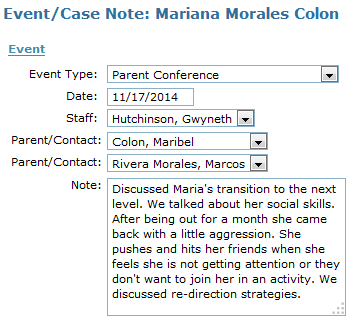
  • Date: Date of the Parent Conference. This defaults to today’s date so be sure to update it if you are entering an event a few days later.
  • Staff: Name of the staff person leading the Parent Conference. The staff person must be entered into ChildWare  in order to appear on the drop-down list.
  • Parent/Contact: Select the name of the parent or contact attending the Parent Conference. You can select up to two from a drop-down list. The parent or contact must be entered into ChildWare and linked to the child’s record in order to show up in the list.
  • Note: Enter specific details here. This field is required for this event type.
Verbal Request for Release of Child

verbal

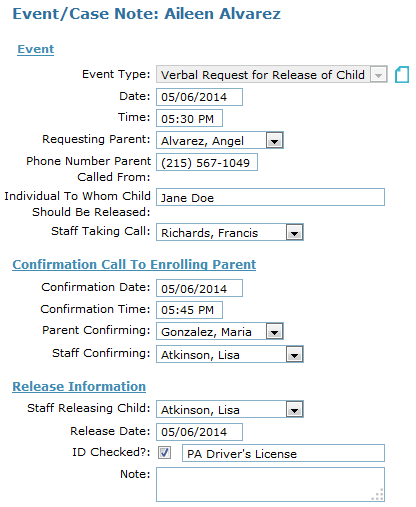
  • Date: Date the request was made. This defaults to today’s date so be sure to update it if you are entering an event a few days later.
  • Time: Time the verbal request was made.
  • Requesting Parent: Name of the parent/guardian that made the request.
  • Phone Number Parent Called From: DPW requires that you request the number from which the parent is calling to make the verbal request. You can leave this blank if the parent made the request in person instead of on the phone.
  • Individual to Whom Child Should be Released: Name of the person that the parent/guardian is authorizing to pick up the child
  • Staff Taking Call: Name of the staff person who took the verbal request. The staff person must be entered into ChildWare  in order to appear on the drop-down list.
  • Confirmation Date: Date the request was confirmed(DPW requires that all verbal requests for children to be released be confirmed with the enrolling parent)
  • Confirmation Time: Time the request was confirmed.
  • Parent Confirming: Name of the enrolling parent/guardian making the confirmation.
  • Staff Confirming: Name of the staff person confirming the request.
  • Staff Releasing Child: Name of the staff person that actually handed the child over to the authorized individual.
  • Release Date: Date the child was handed over to the authorized individual.
  • ID Checked: Confirm that the individual’s identification was checked and note the type of ID used.
  • Note: Additional details can be entered here.

Parental Involvement

parental_inv

  • Date: Date of the parent involvement event. This defaults to today’s date so be sure to update it if you are entering an event a few days later.
  • Staff: Name of the staff person present.
  • Parent/Contact: Select the name of the parent or contact that participated in the event. You can select up to two from a drop-down list. The parent or contact must be entered into ChildWare and linked to the child’s record in order to show up in the list.
  • Note: Enter specific details here. This field is required for this event type.

Early Intervention

early_int

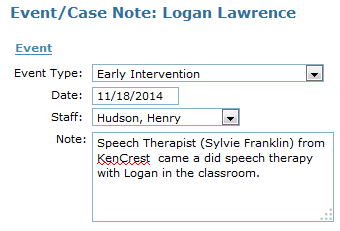
  • Date: Date of Early Intervention visit. This defaults to today’s date so be sure to update it if you are entering an event a few days later.
  • Staff: Name of the staff person present during the visit. The staff person must be entered into ChildWare  in order to appear on the drop-down list.
  • Note: Enter specific details here. This field is required for this event type.
Referral

referral

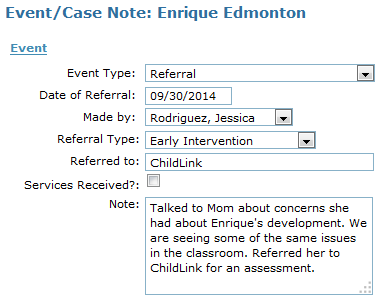
  • Date: Date the referral was made. This defaults to today’s date so be sure to update it if you are entering an event a few days later.
  • Made by: Name of the staff person who made the referral. The staff person must be entered into ChildWare  in order to appear on the drop-down list.
  • Referral Type: Select the type of referral from the list or select Other to enter an item not on the list. Options are: General Health, Dental, Vision, Hearing, Insurance, Mental/Behavioral Health and Early Intervention.
  • Referred to: Name of the program or agency to whom the child was referred.
  • Services Received?: You can set yourself a reminder to follow up to see if services were received. This impacts Head Start reporting.
  • Note: Additional details can be entered here.

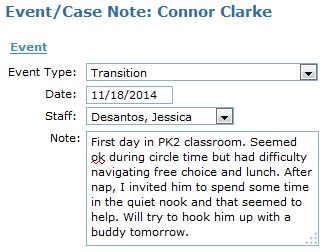
Transition

transition

  • Date: Date of the transition. This defaults to today’s date so be sure to update it if you are entering an event a few days later.
  • Staff: Name of the staff person recording the transition note.
  • Note: Enter specific details here. This field is required for this event type.
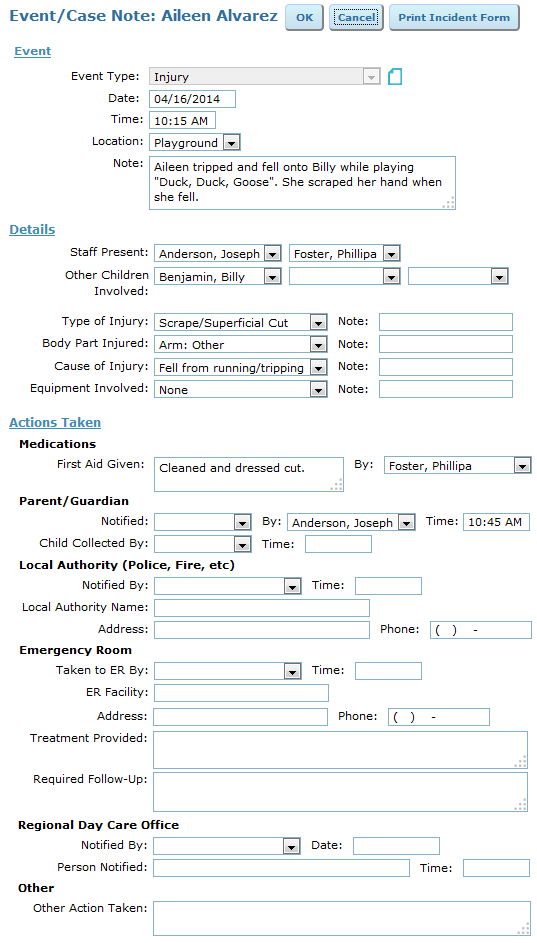
Injury

injury

  • Print Incident Report: When you have finished filling out the event form, you can print an incident report in DPW format to be signed by the parent.
  • Date: Date of the event. This defaults to today’s date so be sure to update it if you are entering an event a few days later.
  • Time: Time of the accident. This can help you identify patterns in the time of day that accidents are more likely to occur.
  • Location: Location of the accident. This can help you identify  patterns in the locations where accidents are more likely to occur.
  • Staff Present: Staff that were present when the accident took place. This can help you identify  patterns in staffing that might affect when accidents are more likely to occur.
  • Other Children Involved: Record any other children involved in the incident, if any.
  • Type of Injury: Select from a list of common injuries or select “Other” and enter specifics.
  • Body Part Injured: Select from a list of common injuries or select “Other” and enter specifics.
  • Cause: Enter the cause of the injury if known.
  • Equipment Involved: Select from a list of typical equipment or select “Other” and enter specifics. This can help you identify patterns in the types of equipment usually involved in accidents.
  • First Aid: If the child was given any first aid, enter it here and indicate by whom it was administered.
  • Parent/Guardian: You can indicate which, if any of the child’s parents or guardians were contacted by whom and at what time. You can also indicate whether or not a parent/ guardian came to pick up the child and at what time that occurred.
  • Local Authority: If the event was serious enough to warrant a call to 911, you can record who called the emergency services and at what time. You can also record what specific service came to your assistance.
  • Emergency Room: If the child was taken to the emergency room, you can indicate by whom and at what time. You can also record the name and contact information of the ER and specify what treatment the child received. If there is a need for specific medical follow up, you can enter it here and add a reminder so you remember to follow up.
  • Regional Day Care Office: For serious incidents resulting in ER treatment, hospitalization, death, or the dispatch of emergency services, the regional day care office (in Pennsylvania, this is your local DPW office) must be notified. You can indicate who notified the office and when; you can also record the name of the specific person at the office to whom the report was filed.
  • Other Action Taken: If any other steps were taken in response to the incident, you can enter them here.