This guide provides step-by-step instructions on setting up and using your To Do List.
Most To Do List items are associated with federal, state and quality regulations. The To Do List helps you identify records that missing, expired, or due to expire. To set your own deadlines, see Customized Event Reminders How-to.
Set Up Your To Do List
1. Navigate to To Do List Setup on the To Do List Menu.

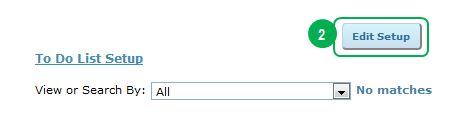
2. Click “Edit Setup.”
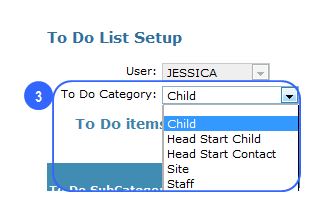
3. Select the To Do List Category. For a full list of categories and items, scroll down to To Do List Definitions.
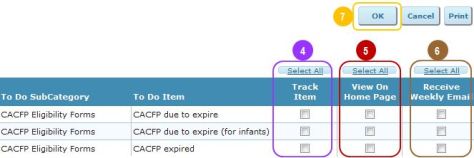
4. Select items that you would like to keep track of in ChildWare. Items selected will appear on you To Do List accessed via the Main Menu.
5. Select items that you would like to see on your home page. This serves as an additional reminder each time you log in to the system.
6. Select items that you would like to include in your weekly To Do List email. This serves as an additional reminder every week to complete selected items.
7. Click “Ok” to save your selections.
*You can use the Select and Deselect All Buttons above each column to speed up the sign up process.
8. Repeat steps 3-6 for each category.
To Do List Definitions
The To Do List Definitions grid provides you with details about each To Do item, including when each item appears on your list. Most To Do List items are linked with federal, state and quality (STARS) regulations. If there is a change to regulations, contact the ChildWare Team and we will update the system immediately.
1. Navigate to To Do List Definitions on the To Do List Menu.
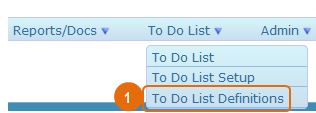
2. Each To Do List item is one row of the definitions grid. This grid tells you the category and subcategory of each item, and when the item will appear for each child, contact, staff or site record.
For example, “CACFP expired” notification displays for each child 1 year after the of the prior CACFP enrollment application (Entered as a CACFP Enrollment Application Event). “CACFP due to expire” notifications display after 10 months of the prior application.

Access Your To Do List
Now that you have learned how to setup your to do list and when each To Do List item displays, you can begin updating information in the system to keep up with important deadlines.
1. Navigate to To Do List on the To Do List Menu.

2. You can view the full list of To Dos or filter by To Do Category, Specific To Do item, or by Classroom (Child/Room List).
3. As with other grids in ChildWare, you can click the column headers to sort by that specific column.
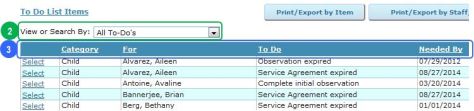
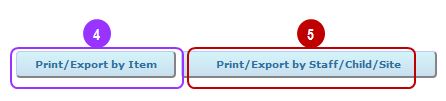
4. Print the To Do List by item. This option will organize the list by to do item and list all associated child, contact, staff or site records.
5. Print the To Do List by individual record. This option will organize the list by child, contact, staff or site record.
6. To make updates to individual records, select the record from the list. After making edits, the system will navigate you back to the To Do List to continue making updates to additional records.

Weekly Email
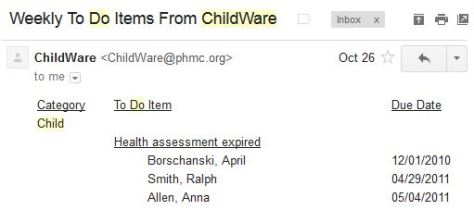
Weekly emails are sent to you every Sunday. The email includes a summary of all To Do items that you signed up for under To Do List Setup.

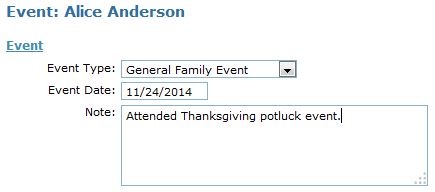
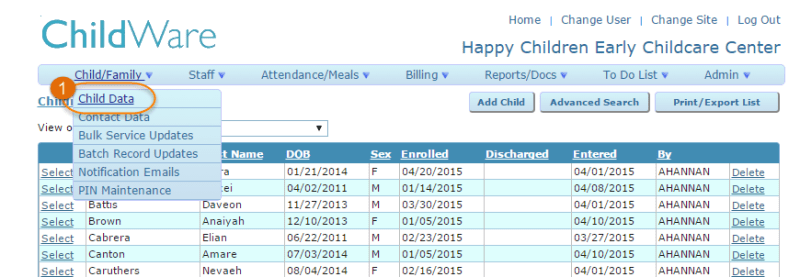 From the Child Data screen you can:
 ChildWare