

Child/Family Sub-Menu
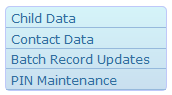
Child Data: View, add, or edit information about children.
Contact Data: View, add, or edit information about a child’s family members.
Batch Record Updates: Update admin data or add assessments/events for multiple children.
PIN Maintenance: Add or edit PINs for family members using the Attendance Kiosk. (CW PLUS)
Contact Data: View, add, or edit information about a child’s family members.
Batch Record Updates: Update admin data or add assessments/events for multiple children.
PIN Maintenance: Add or edit PINs for family members using the Attendance Kiosk. (CW PLUS)
Staff Sub-Menu
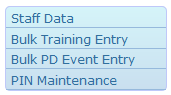
Staff Data: View, add, or edit information about staff members.
Bulk Training Entry: Record training hours for multiple staff at the same time.
Bulk PD Event Entry: Record PD events and activities for multiple staff at the same time.
PIN Maintenance: Add or edit PINs for staff members using the Attendance Kiosk. (CW PLUS)
Bulk Training Entry: Record training hours for multiple staff at the same time.
Bulk PD Event Entry: Record PD events and activities for multiple staff at the same time.
PIN Maintenance: Add or edit PINs for staff members using the Attendance Kiosk. (CW PLUS)
Attendance/Meals Sub-Menu
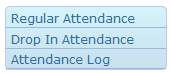
Regular Attendance: Record weekly attendance for children based on their schedule.
Drop In Attendance: Record attendance for children who do not have a set schedule.
Attendance Log: View or edit attendance data entered via the Attendance Kiosk. (CW PLUS)
Drop In Attendance: Record attendance for children who do not have a set schedule.
Attendance Log: View or edit attendance data entered via the Attendance Kiosk. (CW PLUS)
Billing Sub-Menu
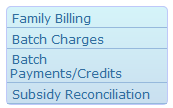
Family Billing: Apply weekly or monthly tuition charges to each child’s account at once.
Batch Charges: Apply special charges to the accounts of multiple children at once.
Batch Payments/ Credits: Apply payments/credits to for multiple accounts at once.
Subsidy Reconciliation: Compare projected vs. actual revenue received from subsidy agencies.
Batch Charges: Apply special charges to the accounts of multiple children at once.
Batch Payments/ Credits: Apply payments/credits to for multiple accounts at once.
Subsidy Reconciliation: Compare projected vs. actual revenue received from subsidy agencies.
Reports/Documents Sub-Menu
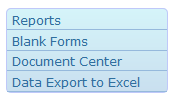
Reports: Run over 100 pre-specified reports and export them to Excel, Word, or PDF.
Blank Forms: Print blank forms such as sign-in/out and meal tracking sheets.
Document Center: View or add documents to staff and child records. (CW PLUS)
Data Export to Excel: Export raw data to Microsoft Excel for more customized analysis.
Blank Forms: Print blank forms such as sign-in/out and meal tracking sheets.
Document Center: View or add documents to staff and child records. (CW PLUS)
Data Export to Excel: Export raw data to Microsoft Excel for more customized analysis.
To-Do List Sub-Menu

To Do List: View items currently on your To-Do List.
To Do List Setup: Select what To-Do items you want to track and how you want to track them.
To Do List Definitions: View explanations of all To-Do List items and notification criteria.
To Do List Setup: Select what To-Do items you want to track and how you want to track them.
To Do List Definitions: View explanations of all To-Do List items and notification criteria.
Admin Sub-Menu
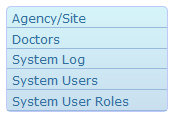
Agency/Site: View, add, or edit data related to your agency/site(s).
Doctors: Edit the list of health care providers that can be assigned to children.
System Log: View recent changes to your agency/site’s data*.
System Users: View or edit user permissions or request new user accounts*.
System User Roles: View details of the permissions associated with each user role.
Doctors: Edit the list of health care providers that can be assigned to children.
System Log: View recent changes to your agency/site’s data*.
System Users: View or edit user permissions or request new user accounts*.
System User Roles: View details of the permissions associated with each user role.
*available only to administrators

 At the very top of the page is the Director’s Dashboard which provides a quick overview of the site’s enrollment and billing status.
 If you have online applications/inquiry forms enabled, recently submitted applications and/or inquiries will be displayed in the Online Applications section. (
 If you are using the Parent Portal, recent data changes made by parents will be displayed in the Parent Change Log. (
 Any outstanding reminders will be shown in the Reminders section. Reminders appear on the date you specify and will remain on your home page until dismissed. For more information on using reminders, click
  Unresolved follow-up items will be displayed in the To Do Items section. For more information on setting up your To Do List, click here.
 ChildWare